

WordPress
RSS to WordPress: 3 Ways to Turn Feeds into Posts
Fact-checked: 14 claims checked against sources

You can connect an RSS feed to WordPress by displaying live items with the native RSS block, importing items as actual posts using an aggregator plugin, or using feed items as research to write original articles. This guide walks through the exact steps for each method, compares their trade-offs, and explains the legal and search ranking risks of auto-importing full text.
What is an RSS feed and how do you find the URL?
Really Simple Syndication packages website updates into a standardized XML file so readers can view new content in one place. You can find your own WordPress RSS feed URL by simply adding /feed to the end of your website’s domain name.
Getting content in front of your audience is a primary concern for site owners. RSS feeds allow users to view your latest articles without memorizing URLs or relying on social media algorithms. According to WP Engine, these feeds package up the contents of your posts and display them in one convenient location. They work alongside feed readers, which are pieces of software that turn the raw XML into readable content. Since the feed does the heavy lifting, users do not even have to remember your web address. This enhanced portability means RSS feeds can become a central tool for promoting your site’s content and keeping your followers informed.
How do you display a live feed using the native WordPress block?
Write & Grow Blog
The native WordPress RSS block displays the latest items from any site's feed as a list or grid directly on a page or post. WordPress fetches the feed itself and caches it (for 12 hours by default), so new items appear without you editing the page. This method displays external content dynamically without creating new entries in your database, making it ideal for showing recent news or partner updates.
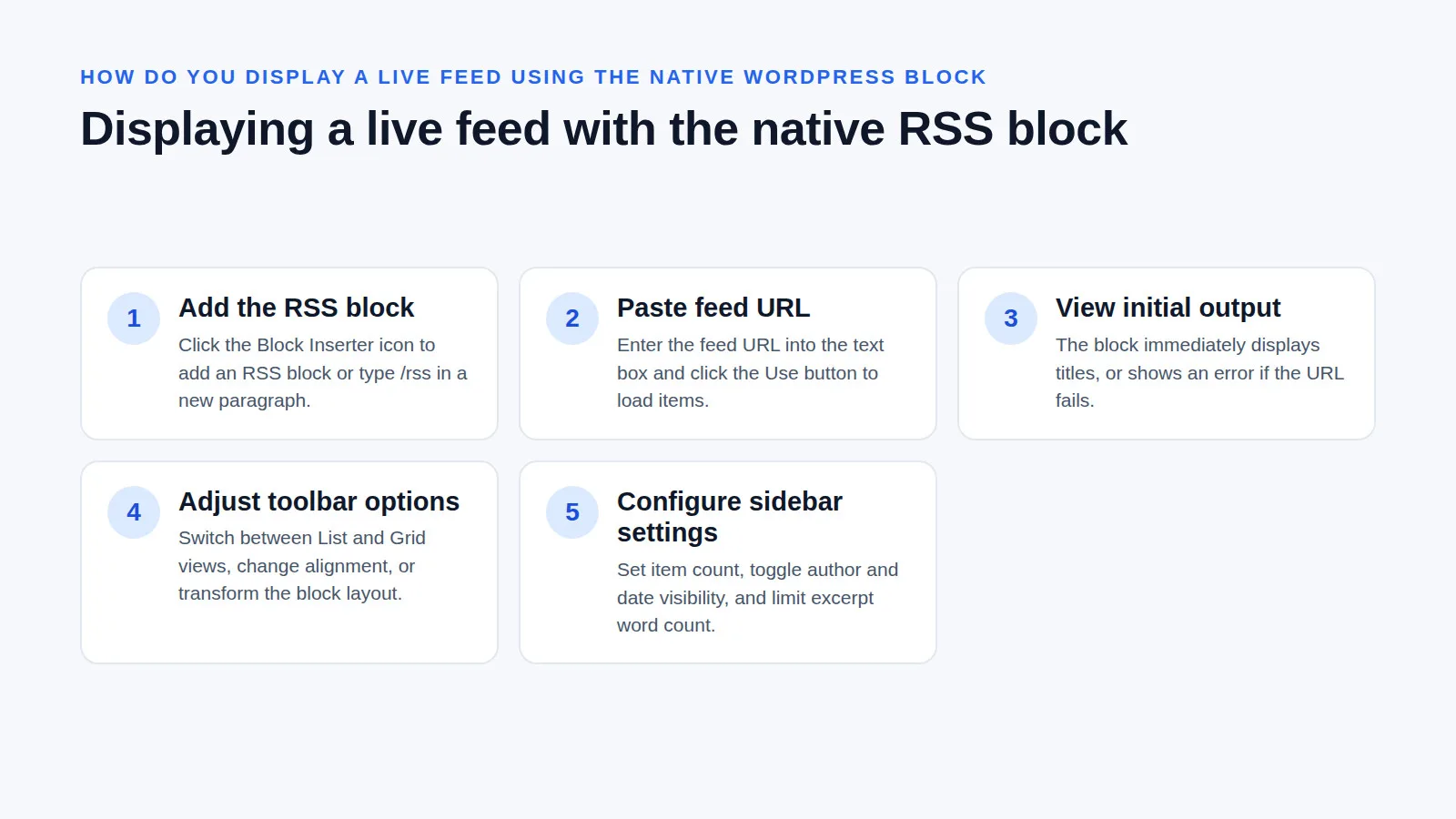
To set this up, click the Block Inserter (+) icon to add an RSS block, or type /rss in a new paragraph block. Paste the feed URL into the text box and click the Use URL button. The block immediately displays the titles of the feed items. If you use a URL that cannot be embedded, the block shows an “RSS Error” message.
You can fine-tune the display using the Block Toolbar and the Block Settings panel. The toolbar lets you switch between List view and Grid view, change alignment, or transform the block into a Group or Columns block for better layout control. In the sidebar settings, you can adjust the number of items, toggle the author and date, and set the maximum word count for the excerpt. The main advantage here is that it requires zero plugins and adds no database bloat. The trade-off is that you cannot style it heavily, and it only shows excerpts, not full articles. Detailed instructions are available in the WordPress.org documentation.
How do you import feed items as actual posts with a plugin?
Aggregator plugins pull external feed items and save them as draft or published posts directly in your WordPress database. This approach turns external content into your own site's pages, allowing you to build a large archive of articles automatically without writing them manually.
Tools like WP RSS Aggregator, Feedzy, and WPeMatico specialize in this workflow. According to HeroThemes, these plugins let you import content from any RSS feed and map it to your specific post types. WP RSS Aggregator's premium Feed to Post feature, for example, automatically converts imported feed items into WordPress posts, pages, or custom post types. WPBeginner notes that some plugins let you show or hide feed items based on keywords, and others offer templates to control how feeds are displayed.
The benefit is obvious: your site stays constantly updated with minimal effort, turning your blog into a dynamic hub. However, the trade-offs are significant. Importing hundreds of posts can slow down your site, increase database size, and create severe duplicate content issues if not managed correctly. You must carefully configure the plugin to avoid pulling in lower-quality content or breaking your site's layout.
Why is auto-importing full text a copyright and SEO problem?
Write & Grow Blog
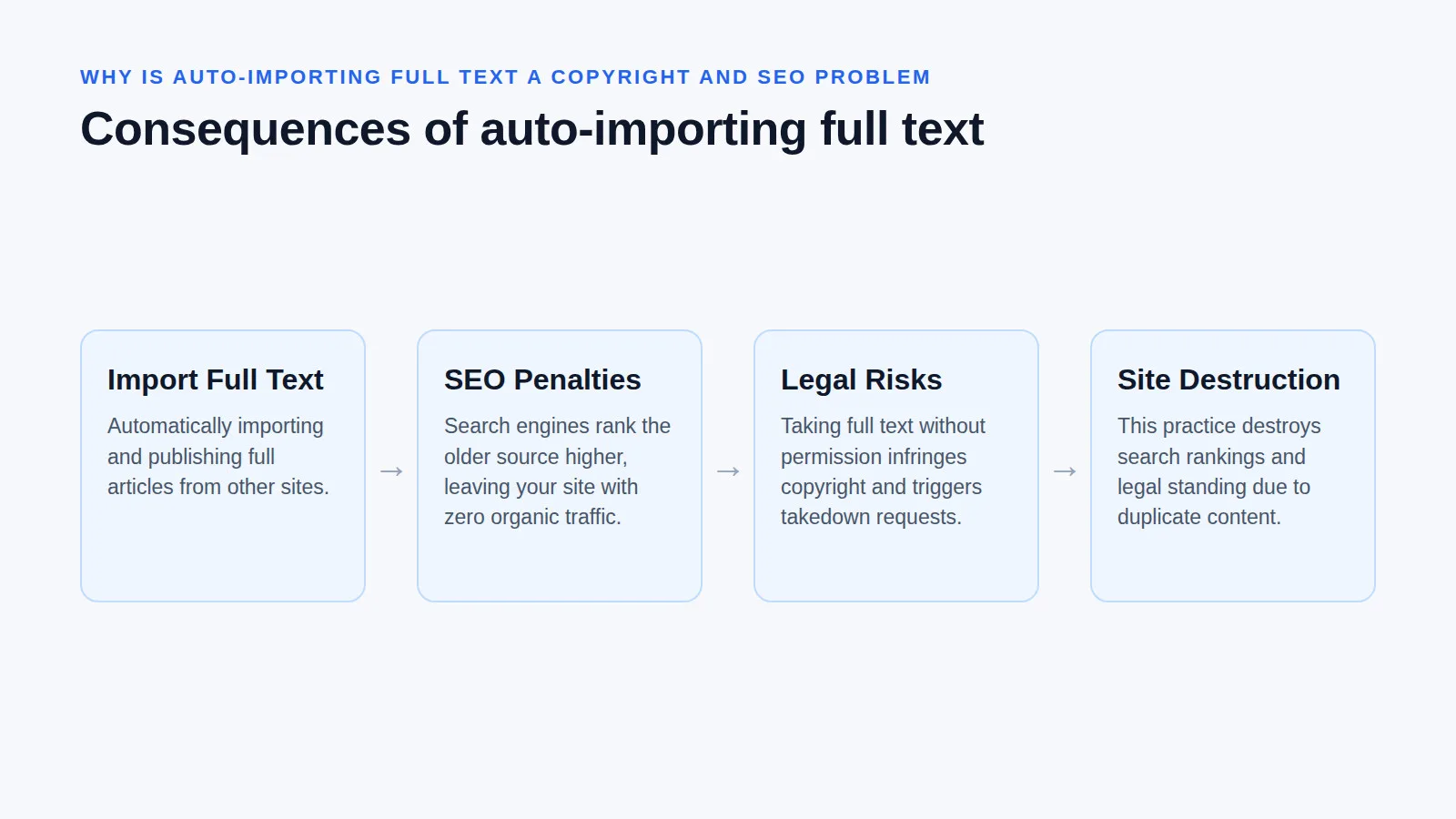
Automatically republishing full articles from other sites without permission can infringe the original publisher's copyright, and Google treats republished feeds that add no original value as scraped content under its spam policies. Duplicate content alone is not penalised, but Google usually shows only one version of duplicated text, so copied posts rarely rank, and scraping at scale can get a site demoted.
When a plugin imports the entire text of an article, search engines like Google face a canonicalization problem. They typically rank the authoritative, older source higher, leaving your newly imported version with zero organic traffic. Furthermore, taking full text without explicit permission infringes on the original creator's copyright, exposing you to legal takedown requests.
As the team behind WP RSS Aggregator explains, it is best practice to honor original creators by providing accurate attribution and linking back to the source, rather than duplicating their work. If you use an aggregator, only import titles and short excerpts. Some SEO plugins offer RSS customization features specifically designed to prevent content theft by adding attribution links to your own feeds. Autoblogging full text is a shortcut that sacrifices your site's long-term viability for short-term volume.
How do you use feed items to write original, ranking articles?
Write & Grow Blog
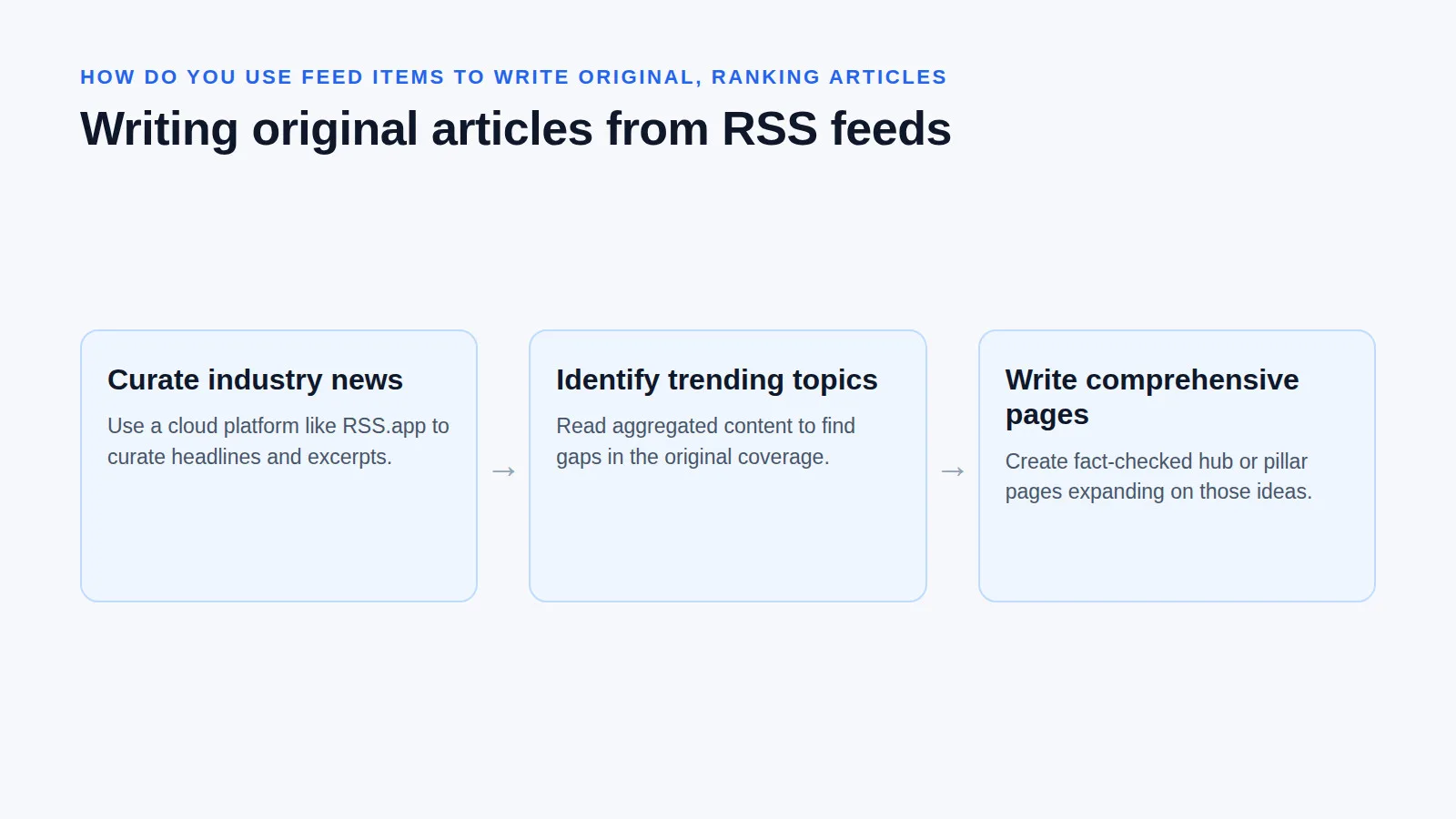
Using RSS feeds as a research tool involves reading aggregated headlines and excerpts to identify trending topics. You then write completely original, fact-checked articles that expand on those ideas, ensuring your content remains unique while still capitalizing on current industry conversations and news.
This is the safest and most effective method for long-term SEO. Instead of auto-importing, use a cloud platform like RSS.app to curate industry news into a custom widget or feed. Read the excerpts, identify gaps in the original coverage, and write a comprehensive hub or pillar page. This approach naturally incorporates internal linking and builds topical authority.
At Write & Grow, we frequently advise agencies to use feeds for content planning rather than autoblogging. This approach ensures your content passes fact-checking, protects your search rankings, and keeps your audience engaged with genuine insights. It requires more manual effort than plugin automation, but it establishes your site as a trusted authority rather than a content mill.
Which RSS to WordPress method should you choose?
Choose the native RSS block to simply display live updates on your pages. Use an aggregator plugin only if you strictly import short excerpts with proper attribution. Alternatively, use feeds as research to write original articles, which delivers the best long-term SEO results and audience trust.
Here is a quick reference to help you decide based on your goals and resources:
| Method | Best Use Case | SEO Risk | Effort Level |
|---|---|---|---|
| Native RSS Block | Showing live news or partner updates on a sidebar | None (No database posts created) | Low |
| Aggregator Plugin | Curating industry links and short excerpts automatically | High (if full text is imported) | Medium |
| Original Writing | Building topical authority and ranking for target keywords | Not published | High |
For most bloggers and site owners, combining the native block for quick news updates with original writing for your core content provides the ideal balance of site freshness and search visibility. Relying entirely on automated imports rarely yields the organic growth that unique, well-researched content provides.
Frequently asked questions
Readers frequently ask about the mechanics of connecting external feeds to their WordPress sites. The most common questions involve finding the correct URL, understanding the current relevance of the technology, and knowing the exact steps to add a feed to a page without breaking the site layout.
How do I add RSS to WordPress?
You can add an RSS feed to WordPress by inserting the native RSS block into any page or post. Simply paste the feed URL into the block, click the use URL button, and configure the display settings in the block sidebar.
Is RSS still relevant today?
Yes, RSS remains highly relevant for content distribution and daily research. It allows users to view website content in a quick format and helps site owners track industry updates efficiently, providing a reliable alternative to relying solely on unpredictable social media algorithms.
How do I find my RSS feed on WordPress?
You can find your default WordPress RSS feed URL by typing your website’s domain name into a browser and adding /feed to the end of the URL. This action displays the raw XML file that feed readers use to pull your latest content.